Set Up Your First Flow Chatbot
3 core concepts every FEAI member must master: creating your AI Agent file, writing its personality prompt, and understanding how AI Left Brain and Right Brain work together.
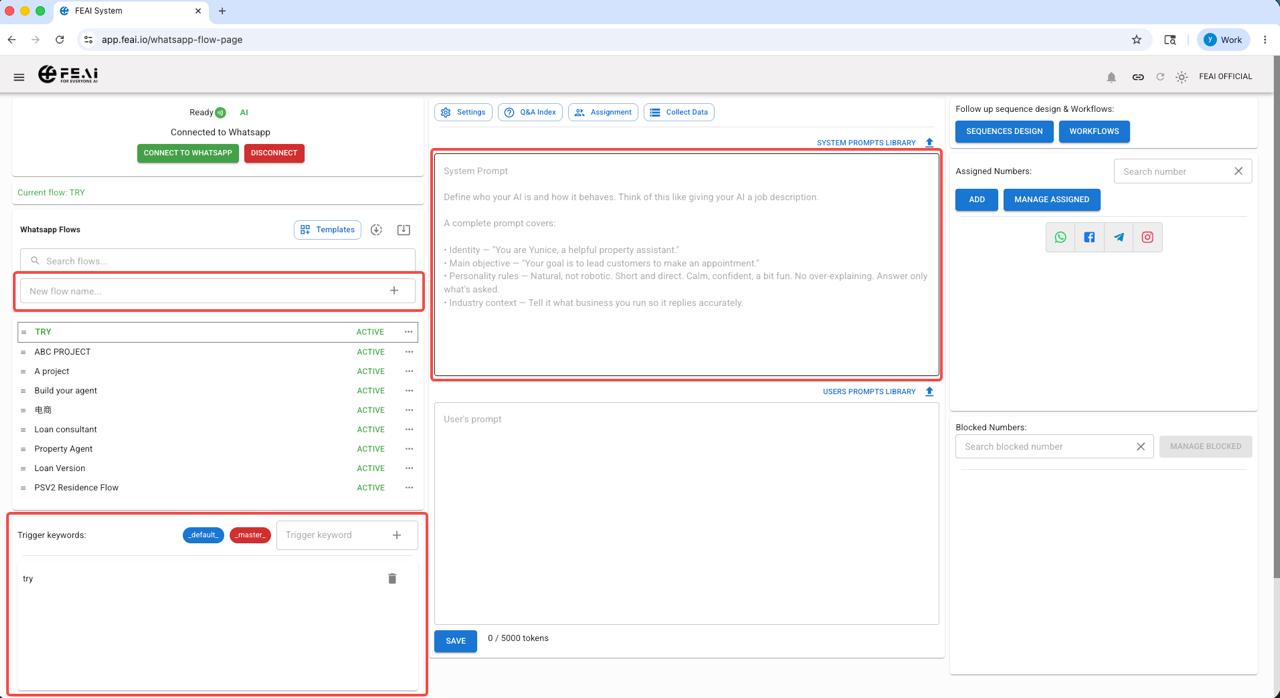
Create your first AI Agent file
Go to AI & Automation → AI Flows Design. Click New flow name... to create a new flow. Give it a name based on its role — e.g. Property Agent, Sales Bot, or Customer Support. This becomes your AI's identity file. You can create multiple agents for different purposes.
Write the AI's personality & prompt
In the System Prompts section, define who your AI is and how it behaves. Think of this like giving your AI a job description. A complete prompt covers:
- Identity — "You are Yunice, a helpful property assistant."
- Main objective — "Your goal is to lead customers to make an appointment."
- Personality rules — Natural, not robotic. Short and direct. Calm, confident, a bit fun. No over-explaining. Answer only what's asked.
- Industry context — Tell it what business you run so it replies accurately
💡 Not sure how to write a prompt? Let AI help you!
You can use ChatGPT or Claude to generate a ready-to-use personality prompt for your AI Agent. Just describe your business and let AI write the prompt for you!
Try copying this into ChatGPT or Claude:
→ Copy the output from ChatGPT / Claude and paste it directly into your FEAI System Prompt box. Done! ✅
Set trigger keywords & assign your WhatsApp number
Add Trigger Keywords (like _default_ or #property) so FEAI knows when to activate this agent. _default_ means it activates for all incoming messages. Then under Assigned Numbers, add your WhatsApp number — this makes your agent live and ready to reply automatically.